
Quick answer
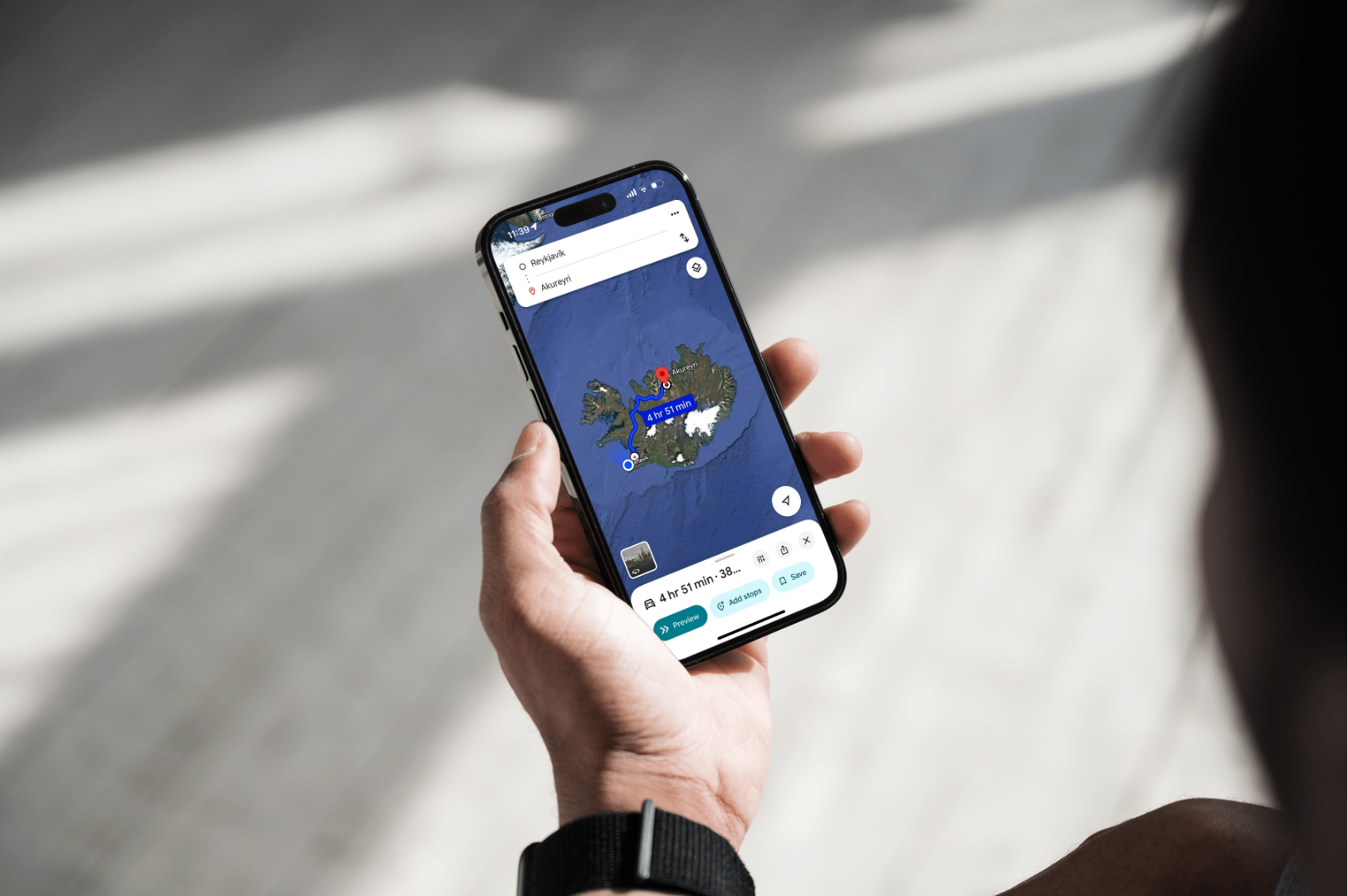
Yes. Google Maps works well in Iceland. It’s the go‑to tool for most locals and travelers. You can navigate the Ring Road, find an address in Reykjavík, or drive to a waterfall like Gullfoss with simple name searches. Coverage is strong on the main roads and in towns. For the Highlands and remote areas, download offline maps first and bring a 4×4 if you plan to use F‑roads.
Why Google Maps is a great match for Iceland
Google Maps has become the main navigation tool not only for visitors but also for locals in Iceland. It fits well with the way people travel here: clear place name searches, reliable coverage on main routes, and easy integration with rental cars. Whether you’re planning a quick day trip or a full Ring Road journey, the app offers practical features that make driving less stressful and more enjoyable.
-
It understands names, not just coordinates. Type “Gullfoss,” “Geysir,” or a café name. You don’t need a full street address. This is a big reason locals use it daily.
-
Reliable coverage where you’ll spend most time. Along the Ring Road (Route 1) and in towns, data coverage is generally good. You’ll get search results, place reviews, opening hours, and live rerouting where available.
-
Offline maps work like a safety net. If you venture off the main roads or lose signal, you still have maps and turn‑by‑turn directions.
-
It scales to your trip. Single stop? Multi‑day loop? You can star places, build lists, and reorder daily stops easily.
-
It speaks the car’s language. With Android Auto or Apple CarPlay, your phone’s map shows on many rental car screens.
In short: online when you can, offline when you need to — and always double‑check conditions in winter or when the forecast looks rough.
Online vs. offline: how to use both the smart way
One of the most common questions travelers ask is whether they’ll have enough mobile coverage to use Google Maps the whole time. The truth is that Iceland offers strong data service along the main roads and in towns, but there are still places where coverage drops. The smart approach is to combine both online and offline use. Stay connected when signal is good for live updates, and rely on offline maps as a safety net when you head into quieter areas.
When you’ll be online
-
KEF (Keflavík International Airport) and the Capital Area (Reykjavík + suburbs)
-
The South Coast from Reykjavík to Vík and onward to Höfn
-
Akureyri and North Iceland towns
-
The Ring Road for most of its length
With data, you get:
-
Live rerouting and estimated arrival times that adjust with conditions
-
Place info (reviews, hours, photos)
-
Real‑time search (gas stations, restrooms, parking, restaurants)
When to go offline on purpose
-
Highlands and interior routes (F‑roads)
-
Remote peninsulas and valleys
-
Anywhere winter weather may knock out signal
Offline maps give you:
-
Turn‑by‑turn driving without data
-
Saved places and pinned routes
-
A backup if your roaming plan fails or battery is low (offline uses less power)
Tip: Even if you expect perfect signal, download Iceland for offline use before you land. It takes a few minutes on Wi‑Fi and gives you instant backup.
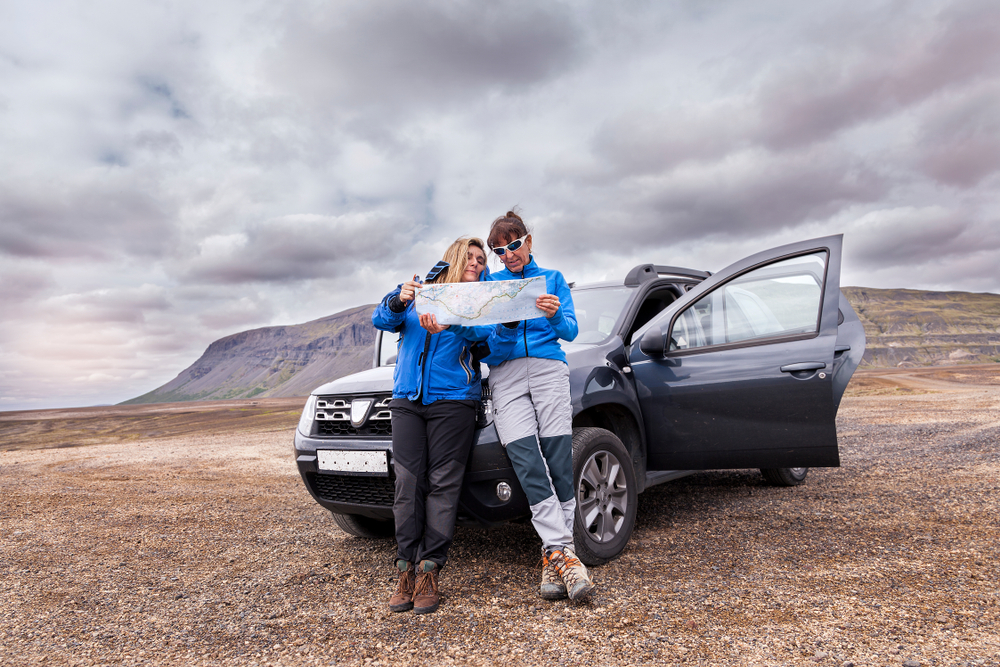
How to set up Google Maps for Iceland (step‑by‑step)
Getting your map ready before you hit the road makes driving in Iceland much smoother. Setting up offline maps, saving key stops, and connecting your phone to the rental car takes only a few minutes but can save you time and stress later. Think of it as packing your navigation toolkit — quick preparation that keeps you covered whether you’re on the Ring Road or a gravel detour.
On Android and iPhone
-
Open Google Maps → tap your profile photo.
-
Tap Offline maps → Select your own map.
-
Drag/zoom to cover all of Iceland (include the Westfjords and Eastfjords).
-
Tap Download.
-
In Offline maps settings, toggle Auto‑update offline maps so they refresh when you’re on Wi‑Fi.
Save the essentials
-
Star Keflavík Airport (KEF), your Blue pickup location, your hotel, and your key stops.
-
Create a list called “Iceland Trip” and add sights like Gullfoss, Geysir, Seljalandsfoss, Skógafoss, Jökulsárlón.
-
Save a few gas stations on each day’s route.
Connect to the car
-
If your rental supports Android Auto or Apple CarPlay, plug in via USB (or connect wirelessly if available). Follow the on‑screen prompt. Keep a cable in the glovebox.
Set safe defaults
-
In Route options, consider toggling Avoid ferries (not common) and check Avoid unpaved roads if you’re in a 2WD. If you’re in a 4×4, leave it off but still verify F‑roads with road.is.
Clever tip: download your offline map at the airport while waiting for your luggage. That way your phone is ready before you even reach your rental car.

About F‑roads and 4×4 use
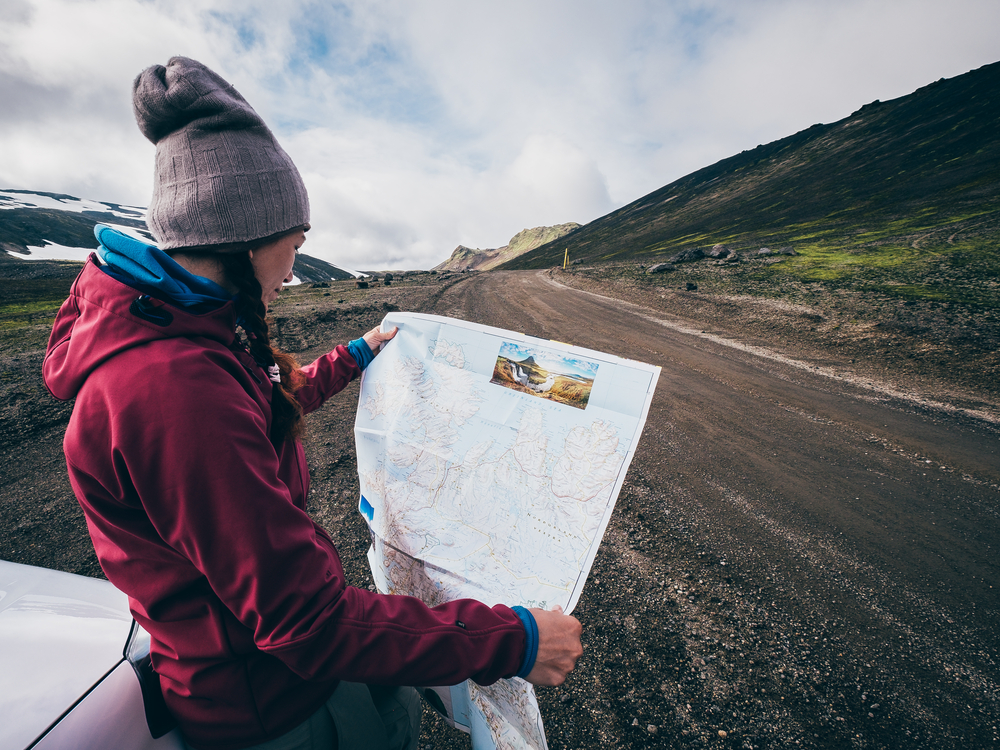
F‑roads are mountain tracks in Iceland’s interior. They are 4×4‑only, seasonal, and often involve gravel, river crossings, and steep sections. Google Maps may show them as a route option, but the app won’t know if the road is closed or if your vehicle is allowed there.
-
If your plan includes the Highlands, book a 4×4 with proper ground clearance.
-
Always check road.is for seasonal openings and real‑time closures.
-
Look at the webcams on road.is to see wind, visibility, and surface conditions.
-
In poor weather, choose a lower‑risk plan. ETAs can double in winter.
Helpful reads from Blue:
Locals use it too
Most Icelanders use Google Maps for daily life: school runs, shops, cafés, and addresses in Reykjavík and beyond. That’s why place names and search results feel natural. Type the name of a waterfall, museum, or guesthouse and you’ll find it — even if you don’t know the exact street number or postal code.
This is a key advantage over many standalone GPS units. With a car GPS you often need a precise address or coordinates. With your phone, you can type a name, a company, or even a landmark nickname and get what you need.

Why use your phone instead of a standalone GPS
Many travelers wonder if they should rely on their rental car’s GPS unit or stick with their own phone. In Iceland, using your smartphone with Google Maps usually makes more sense. It understands place names the way locals do, it’s updated constantly, and it can run both online and offline. That flexibility is hard to match with a traditional GPS device.
Pros of Google Maps on your phone
-
Search by names, businesses, and landmarks (not just coordinates)
-
Up‑to‑date info for hours, closures, and reviews
-
Offline and online modes with one app
-
CarPlay / Android Auto integration in many rentals
-
Quick rerouting and alternate routes
-
Easy sharing with your travel group (send a location in your messaging app)
Cons to consider
-
You need power management (use a mount and keep charging)
-
Data helps (offline covers you when it doesn’t)
-
Screen glare now and then (keep a microfiber cloth handy)
When a dedicated GPS still makes sense
-
You prefer a separate device
-
You’ll be deep in remote areas for long stretches and want yet another backup
Most travelers today do well with just Google Maps and an offline map. Add the official road and weather checks, and you’ll have a safer, smoother trip.
Make Google Maps work harder for you
Once you’ve mastered the basics, there are plenty of small tricks inside Google Maps that can make your trip smoother and more enjoyable. These features save time, help you stay organized, and give you quick backup plans when Iceland’s weather throws a surprise.
Save and label
-
Star your hotel, food stops, gas stations, and viewpoints
-
Use Lists to group each day’s sights
-
Add labels like “Photo stop” or “Quick lunch”
Build multi‑stop routes
-
Add all your stops, then tap and hold to drag them into the best order
-
Keep a Plan A and Plan B for days with uncertain weather
Share your location
-
Use Share trip progress so your travel partner knows your ETA
Know the icons
-
Blue line is your route; gray lines are alternatives
-
If Google suggests a “faster route” due to a slowdown, you’ll get a prompt
Speed limits and cameras
-
Treat in‑app speed limits as advisory only. Always follow the posted road signs.
Terrain vs. satellite
-
Satellite view is handy near trailheads and parking areas at natural sites. Switch back to the default map for driving.
Safer driving: what Google Maps can’t do for you
Google Maps can guide you, but it can’t close a road or change the weather. In Iceland, that matters.
-
Check road.is every day in winter and whenever strong wind, snow, or heavy rain is forecast.
-
Check vedur.is for yellow/orange/red alerts. Plan around them.
-
Watch your timing. In winter, start earlier. Distances feel longer after dark.
-
Respect F‑road rules. 4×4 only, summer season, and never cross a river if you’re unsure.
Useful articles:
Coverage, SIMs, and battery tips
Staying connected is easier in Iceland than many visitors expect, but it still pays to prepare. Mobile data is strong on the main roads and in towns, while the Highlands and remote valleys can leave you offline. That’s where having offline maps, a local SIM, or just smart battery habits keeps you safe and stress‑free on the road.
Data coverage
-
Expect strong 4G in towns and along most of the Ring Road
-
Remote valleys and the Highlands will have gaps
-
Offline maps smooth out the gaps; you still get turn‑by‑turn directions
Roaming vs. local SIM/eSIM
-
If your roaming plan is expensive, consider a local SIM or eSIM from an Icelandic carrier
-
Download your offline map on Wi‑Fi regardless
Power management
-
Keep a 12V USB adapter and cable in the car
-
Use a phone mount so your eyes stay on the road
-
Reduce screen brightness slightly; offline mapping draws less power than online
KEF airport: a simple first hour with Blue
Landing in Iceland can feel overwhelming after a long flight, but your first hour at KEF sets the tone for the trip. With a few simple steps you can go from baggage claim to the open road quickly and with peace of mind. Here’s how to get organized before you even leave the airport:
-
Connect to airport Wi‑Fi and confirm your offline map is ready.
-
Pick up your car at Blue — save time with online check‑in and, if you arrive late, key‑box pickup.
-
Open road.is and vedur.is on your phone and spend 60 seconds checking wind, visibility, and any closures.
-
Enter your hotel in Google Maps. Prefer the name, not the address. Hit Start.
Helpful reads:
How Google Maps helps on classic routes
Google Maps isn’t just good for getting across town — it also works smoothly on Iceland’s most popular driving routes. Whether you’re tracing the Golden Circle, exploring the South Coast, or circling the whole island on the Ring Road, the app helps you keep track of stops, parking, and timing without stress.
Golden Circle (Thingvellir → Geysir → Gullfoss)
-
Search by name and star all three
-
Add stops like Kerið crater and a lunch spot
-
Use satellite view in parking areas for easier exits
South Coast (Reykjavík → Vík → Kirkjubæjarklaustur → Höfn)
-
Save waterfalls (Seljalandsfoss, Skógafoss) and viewpoints (Dyrhólaey, Reynisfjara parking)
-
Add gas stops and a couple of cafés in Vík
-
Watch for wind alerts; adjust your plan early if needed
Ring Road (counter‑clockwise or clockwise)
-
Break days into 2–4 major stops and 2–3 short photo stops
-
Save your overnight stays as starred places
-
Keep a weather‑friendly Plan B for each day
Ideas from Blue:
Parking, towns, and small logistics
Parking
-
Reykjavík has zones and payment machines; Google Maps search results often link to parking info and hours
-
At natural sites, follow posted signs and use marked lots
-
Never stop or park on the shoulder for a photo — use lay‑bys only
Read more: Parking in Iceland: Reykjavík guide
Addresses and language
-
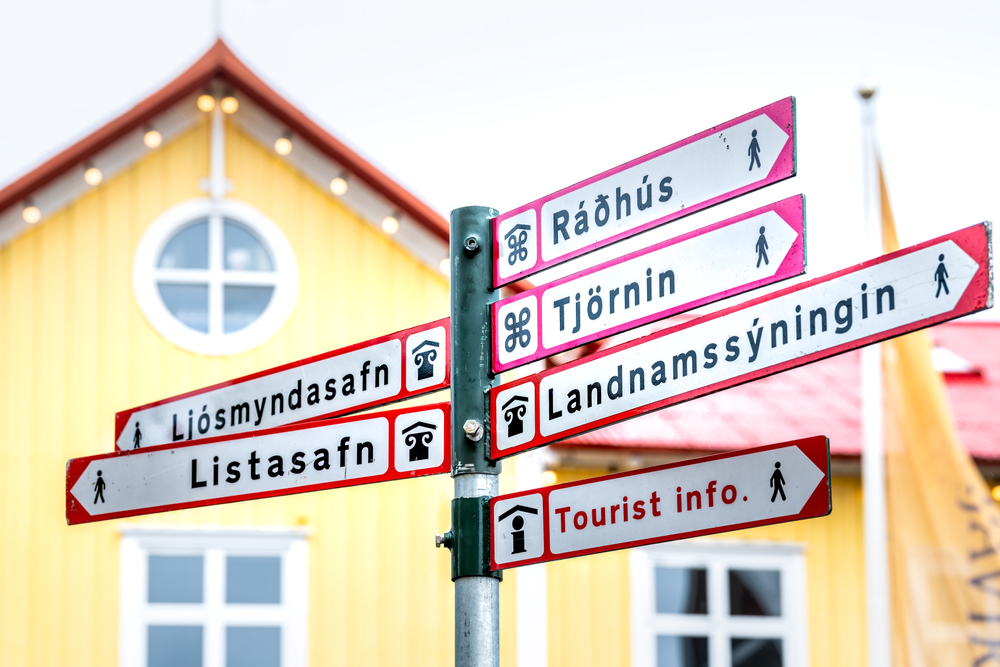
Icelandic uses characters like á, ð, and þ; Google handles them well
-
If you can’t find a place by address, try the name or nearby landmark
Tunnels and tolls
-
Iceland has very few tolls; if you use the Akureyri tunnel, pay online within the required time window
Speed limits and cameras
-
Treat in‑app limits as a guide only; always follow posted signs
-
Give extra space and time in wind, rain, and snow
Read more: What are the speed limits in Iceland?
Parking
-
Reykjavík has zones and payment machines; Google Maps search results often link to parking info and hours
-
At natural sites, follow posted signs and use marked lots
-
Never stop or park on the shoulder for a photo — use lay‑bys only
Read more: Parking in Iceland: Reykjavík guide
Addresses and language
-
Icelandic uses characters like á, ð, and þ; Google handles them well
-
If you can’t find a place by address, try the name or nearby landmark
Tunnels and tolls
-
Iceland has very few tolls; if you use the Akureyri tunnel, pay online within the required time window
Speed limits and cameras
-
Treat in‑app limits as a guide only; always follow posted signs
-
Give extra space and time in wind, rain, and snow
Read more: What are the speed limits in Iceland?

If Google offers a “gravel shortcut”…
It happens. The app may shave a few minutes by routing over a gravel road. Here’s how to decide:
-
In a 2WD: use Avoid unpaved roads in Route Options, or pick the paved alternative yourself
-
In a 4×4: it might be fine, but check your insurance and the day’s weather; slow down for loose surfaces
-
In winter: stick to the main route unless you have clear, calm conditions and local knowledge
Blue Car Rental makes this even easier
-
Fast start: Online check‑in and key‑box pickup help you get on the road sooner.
-
No deposit: Rent without a credit card hold.
-
Clear vehicle choice: 2WD for paved routes; 4×4 for Highlands and rough gravel.
-
24/7 support: If weather or closures change your plan, help is a call away.
-
Local guidance: Our team can advise on routes and F‑road suitability.
Pair that support with Google Maps, and you have both the tool and the local context to use it well.
Troubleshooting: quick fixes on the road
-
Place won’t appear? Switch between name and address; try a nearby business; check spelling; add “Iceland.”
-
App won’t start navigation? Toggle airplane mode on/off, or restart the app. If data is weak, switch to your offline map.
-
Stuck in satellite view? Tap the layers icon and return to the default map.
-
Battery dropping fast? Lower screen brightness; use offline mode; keep charging while you drive.
-
CarPlay/Android Auto doesn’t connect? Try a different cable; plug into a different USB port; fall back to the phone screen if needed.
Sample day plan using Google Maps (South Coast)
-
Reykjavík → Seljalandsfoss
-
Start early. Save Seljalandsfoss Parking and the path behind the falls.
-
-
Seljalandsfoss → Skógafoss
-
Add Skógafoss Parking and the stairs for the top viewpoint.
-
-
Skógafoss → Vík
-
Save Reynisfjara Beach Parking (heed warning signs) and Dyrhólaey Viewpoint.
-
-
Vík → Guesthouse
-
Star your accommodation and a nearby gas station for morning fuel.
-
If wind warnings appear on vedur.is, switch to short, close‑by stops and skip exposed viewpoints. Update your saved list so tomorrow starts clean.
Final thoughts
Google Maps is a solid, simple way to drive yourself around Iceland. It’s what many locals use, it works online and offline, and it understands place names the way you do. Pair it with a well‑chosen car — 2WD for paved routes, 4×4 for F‑roads — and the quick daily habit of checking road.is and vedur.is. That’s the formula for a smooth, safe trip.
Think of it as your travel companion: a tool that not only gets you from A to B, but also helps you find hidden waterfalls, cozy cafés, and gas stations when you need them most. By using saved lists, offline maps, and the integration with your rental car, you can make navigation effortless and focus more on the journey itself. The combination of good preparation and local awareness turns a regular road trip into a confident self‑drive adventure.
If you’re flying into KEF, renting with Blue keeps things easy: online check‑in, fast pickup, clear insurance options, and a team ready to help when plans change. Set your first stop, hit Start, and enjoy the drive knowing you’ve got both modern navigation and local support on your side.
Best practice in one line: use Google Maps for turn‑by‑turn navigation, and always check road closures and weather on official Icelandic sites before you drive.
 DRIVING IN WINTER: ICELAND’S CAR RENTAL SAFETY GUIDE FOR FIRST-TIME VISITORS